


Disclaimer – This tutorial is only applicable for Traditional UI based development.
Cascading dropdowns come up in almost every Pega project.
You select a country, and the state dropdown updates automatically to show only the states for that country. You select a product category, and the sub-category list changes. The pattern is the same – one control drives the source of another.
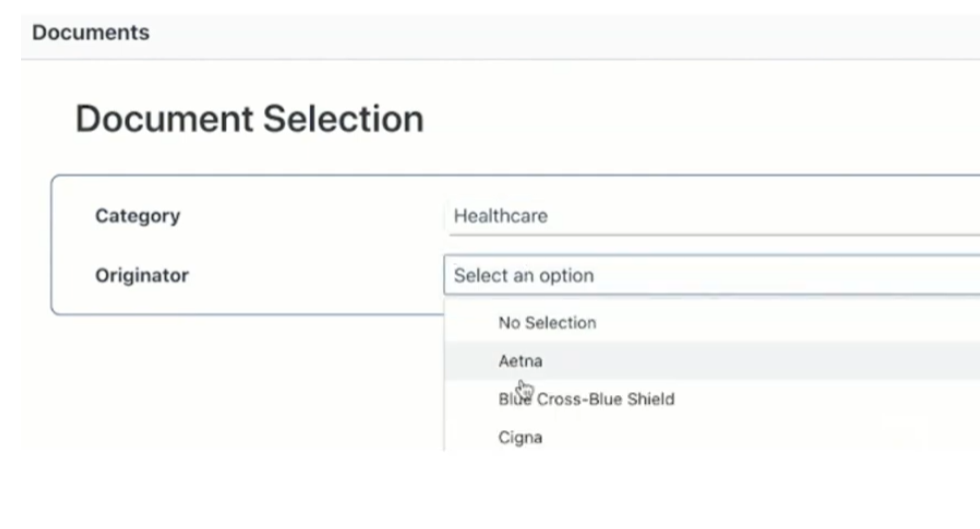
Here is how to build it properly.
Because this is completely tutorial based, straight away jump to the below video!
Watch the Full Walkthrough
In the video below I build the full cascading dropdown from scratch – creating the data pages, report definitions, section refresh configuration and the disable condition – with a live test showing the cascade working end-to-end.
Cascading controls are simpler than they look once you understand the refresh and parameter passing pattern. This video covers every step you need.