


Every Pega developer spends most of their time in one place.
Dev Studio.
If you are new to Pega, this is the first screen you need to get comfortable with. Not because it is complicated – but because once you know where things are, everything else starts to make sense.
In this post I will walk you through the key areas. Not everything that would take hours. Just the parts you will actually use day to day.
What Dev Studio Is For
Dev Studio is your primary development workspace. You can write code here, review code, manage branches, merge changes, and handle deployments – all from the same place.
One important thing to remember. Dev Studio is for developers only. End users should never have access to it. And it is available across all environments – not just development.
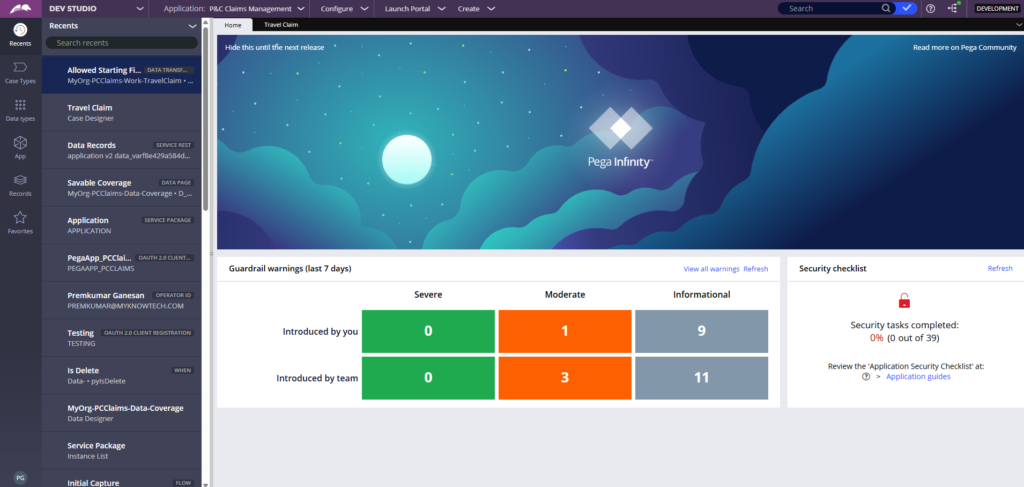
The Top Panel
This is where most of the navigation lives.
Studios switcher – from here you can jump between Dev Studio, App Studio, Admin Studio and Prediction Studio without logging out.
Current application – shows which Pega application you are currently working in. Think of it like a project in Java terms. You can switch applications or create new ones from here.
Configure this is a big one. Under Configure you will find a wide range of settings grouped by category. The ones I use most often:
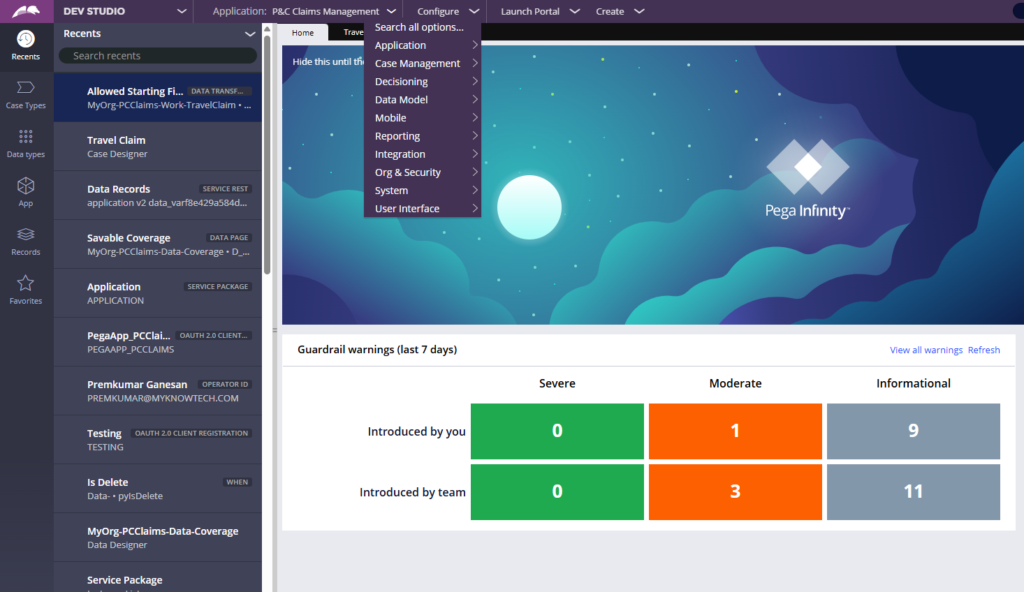
- Application -> Quality -> Guardrails – your compliance score lives here. Every warning your code generates brings the score down. Keep an eye on this.
- Application -> Quality → Test Coverage – Pega has built-in unit and scenario testing. This is where you track it.
- Recent Actions – under Development. I visit this frequently to check what has recently changed or to find auto-generated code from wizards.
- Integrations – one of the most important sections. Pega has a rich set of wizards that make integrations with external systems much easier to configure than you might expect.
- Org and Security – authentication and authorisation configuration lives here.
- System – database optimisation, log files, code refactoring. You will be here often.
Search – every rule in Pega has a name. You can do exact match or content search from here. In Pega, we refer to code as rules get used to that terminology early.
The Bottom Panel
A few things worth knowing here.
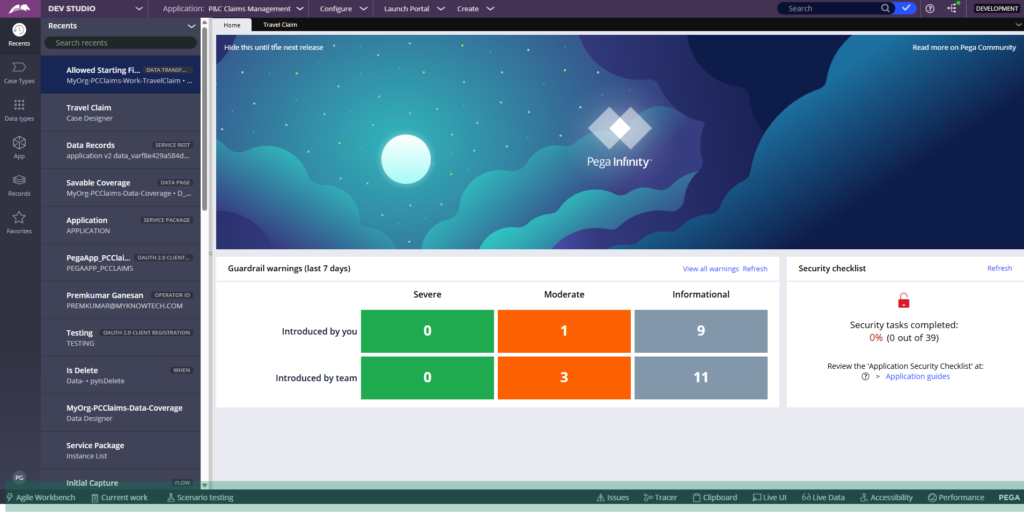
Agile Workbench Pega integrates with project management tools like Jira and ServiceNow. If your team uses one, this is where the integration is configured.
Tracer and Clipboard these are your debugging tools. When something goes wrong in development or production, these two tools will help you pinpoint the issue almost every time. A separate deep dive on these is coming.
The Left Panel
Favorites bookmark the rules you use most. Works exactly like browser bookmarks.
Records Explorer this is where all your rules sit, categorised by type. Throughout your Pega development work, you will spend a lot of time here exploring and creating rules.
App Explorer shows your application’s class structure.
Data Types and Case Types gives you an overview of your data objects and case lifecycles.
Watch the Full Walkthrough
I walk through every section of Dev Studio live in the video below – including the navigation, tools and configurations in action.
Dev Studio is one of those things that feels overwhelming at first glance. But once you spend a few hours inside it, the layout starts to feel natural. The key is knowing what to look for – and now you do.