


Generating an Excel file in Pega is simpler than most people expect.
Pega ships a utility activity out of the box – pxGenerateFile – that handles the generation and download in two steps. All you need to provide is a template and the data.
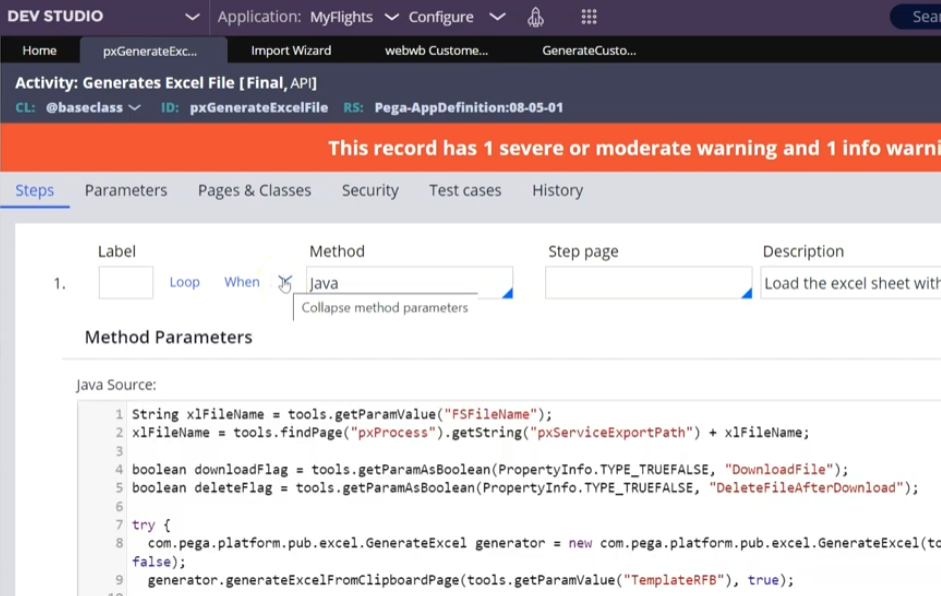
How pxGenerateFile Works
The activity accepts four parameters.
The file name – what the downloaded file will be called. You can hard-code this or generate it dynamically, like appending a username or a date. Make sure you include the correct Excel file extension.
The Rule File Binary – a binary file rule in Pega that holds your Excel template. Pega uses this template as the base and populates it with your data at runtime.
A Boolean for whether to download the file after generation. Pega generates the file and places it in a server-side location first – pxServiceExportPath on the clipboard holds that path. The download step then pulls it from there.
A Boolean for whether to delete the file after download. Since the file is written to a server location first, you typically want to clean it up after the download completes.
Setting Up the Excel Template
The template is a standard Excel file with specific property references embedded in the cells. For single values you reference a Pega property directly. For lists you reference the page list property and the specific property within each page.
The History tab of the pxGenerateFile activity documents the exact syntax for these references. Read it before building your template – it saves time.
Once your template is ready, upload it into a binary file rule in Pega and save it. That binary file rule name is what you pass as the RFB parameter.
Calling the Activity
Create a wrapper activity that prepares the data and then calls pxGenerateFile. Populate the data structure the template expects – initialize the page list, set your properties, add your rows. For single values, set the property directly. For the file name, build it dynamically if needed.
Then call pxGenerateFile, passing the file name, the binary rule’s pxInsName value, and your download and delete Boolean flags.
Run the activity and the Excel file downloads automatically with all your data populated.
Watch the Full Walkthrough
In the video below I walk through the full setup – creating the Excel template with property references, uploading it as a binary file rule, building the wrapper activity with hard-coded data and running it to generate and download the file live.
Excel generation in Pega is one of those features that looks like it should be complicated but turns out to be straightforward once you know the template syntax and the activity parameters.