


Cache management is one of those topics every Pega developer eventually runs into – usually when something is not refreshing the way it should. Admin Studio makes this far easier than it used to be, and it is worth knowing your way around it.
Finding Cache Related DSS Settings
In older Pega versions, system settings were managed individually in prconfig.xml on each server. Pega introduced Dynamic System Settings (DSS) to solve this – settings saved as a rule in the database and applied across all nodes running against it.
Earlier, if you needed a specific DSS, you would often raise a support ticket or search Pega documentation to find the exact name. Pega now ships a System Settings Guide that lists all of these directly.
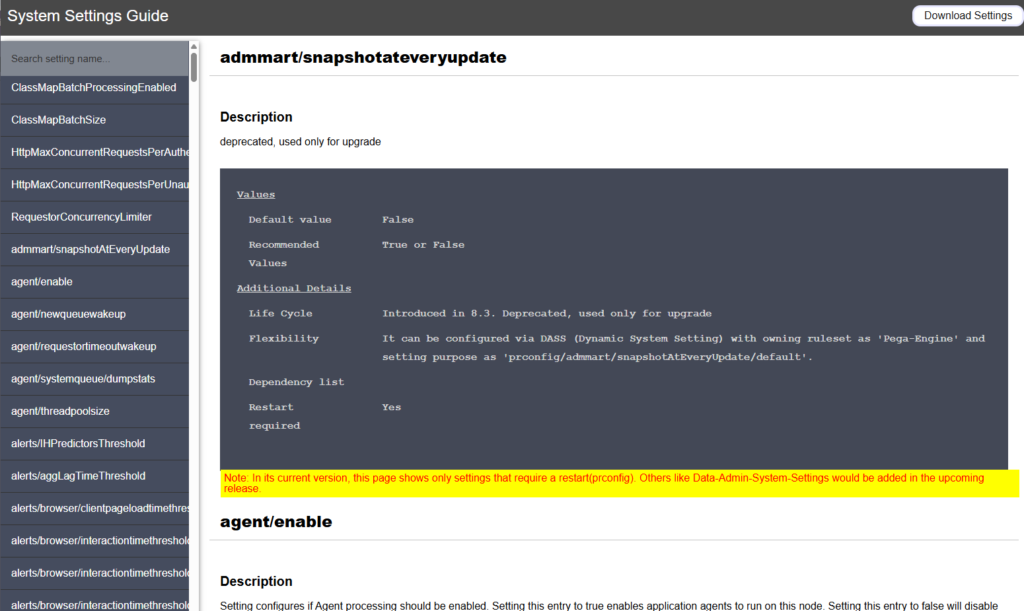
You can access it from Designer Studio using the help icon, then System Settings Guide. One useful example is the cache instance count limit – this controls the initial allocation size of the database cache, essentially how many rules of a given type can be cached at the same time.
Think of it like a bus with a fixed number of seats. Once the limit is reached, the rule that has been in cache the longest and is least used gets evicted to make room for a new one. The default limit is usually around 3000, and you will also come across related settings like MRU (Most Recently Used), conclusion cache, and declarative pages.
The general recommendation is to leave these at default. Only adjust them if you are seeing actual performance issues and need to tailor the configuration to your application’s load.
For declarative pages, there are existing utilities to flush them – either at a thread level from an activity, or by opening the data page and clearing it directly. This part has not changed much across versions.
The bigger question is usually around rule cache and conclusion cache, and that is where Admin Studio comes in.
Admin Studio Replaces SMA for Cache Management
In Pega 7, cache management was handled through the System Management Application (SMA). From Pega 8 onwards, Admin Studio replaces SMA and provides a set of APIs to get cache details and clear cache entirely through the API service package.
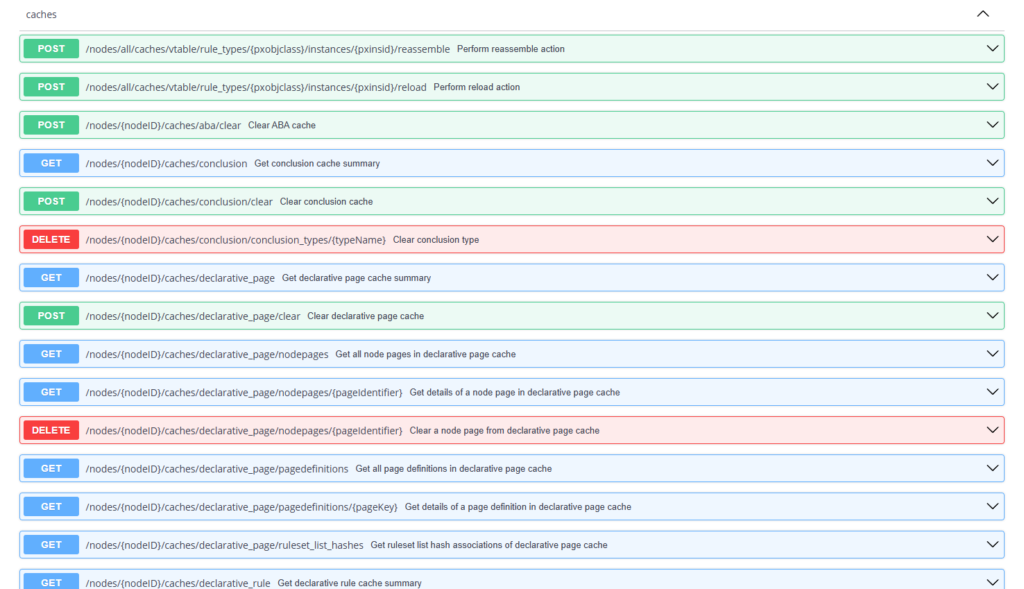
To access these, go to Admin Studio, then Resources, then API, and scroll to System Management. Here you will find all the cache related endpoints grouped together.
Clearing Rule Cache for a Specific Rule
This is the API most developers will reach for when something is not refreshing as expected.
You can get the rule cache per node, and clear it either entirely or for a specific rule using its pzInsKey. To test this, open an activity rule and execute it a few times so it gets loaded into cache. Then call the clear rule cache endpoint with the node ID and the ruleInsKey of that activity.
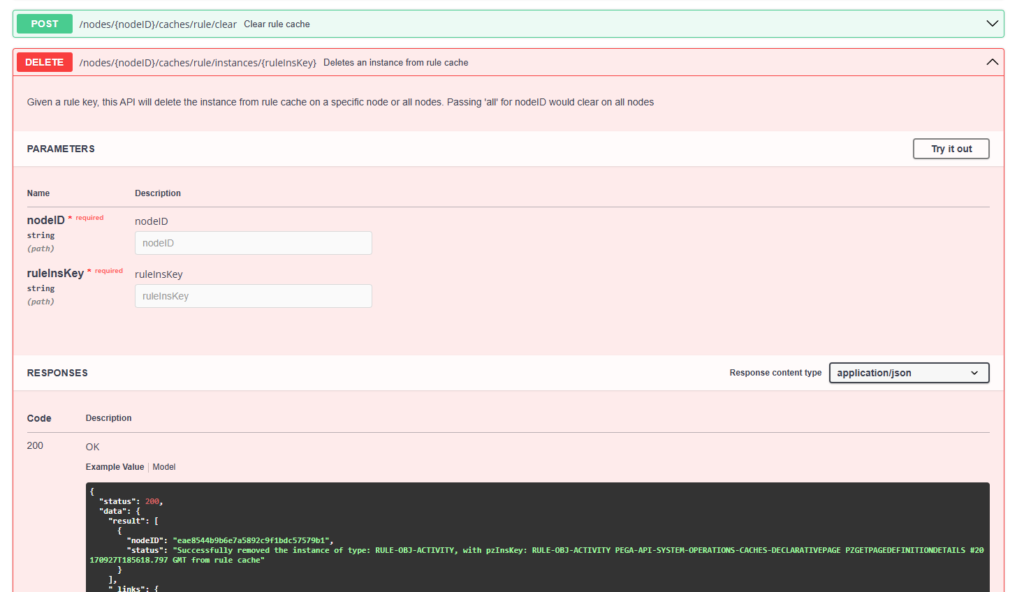
A successful call removes that specific instance from cache. There is also a separate API for the rule assembly cache, which works in a similar way.
Under the hood, Pega is invoking Java classes and methods to manage all of this in memory – so do not expect the API definitions themselves to be very readable. The important part is knowing which endpoint to call and when.
Watch the Full Walkthrough
The full demo, including the live API calls in Admin Studio, is in the video below.
Next time you run into a stale cache issue, you now know exactly where to go in Admin Studio to check it, and how to clear it without restarting anything.