

Creating a portal in Pega Constellation is done entirely in App Studio – no Dev Studio required. The configuration is visual and straightforward, but understanding how landing pages, widgets and channels connect is important before you start.
How Portals and Landing Pages Work
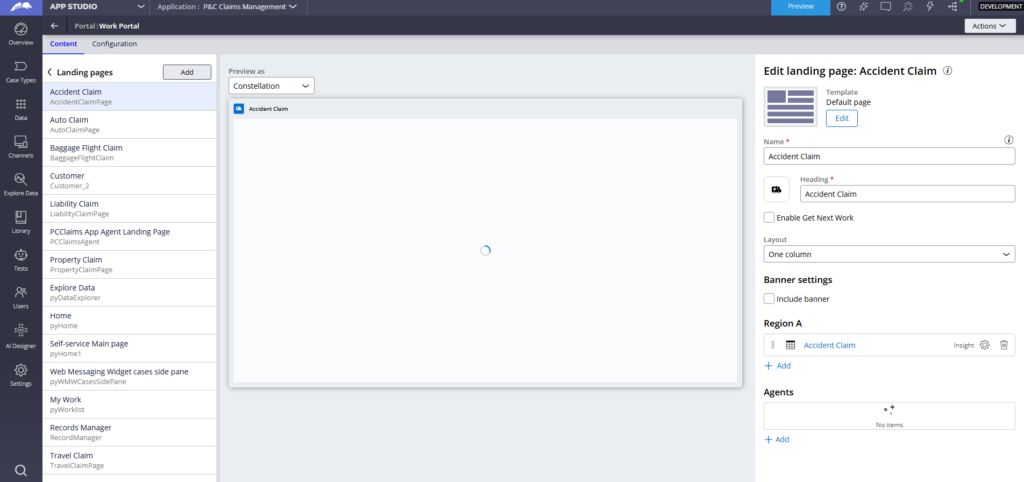
A portal in Constellation is made up of landing pages. Each landing page appears as a navigation item in the portal’s left sidebar. The content of each landing page – the widgets, views and insights it displays – is configured in App Studio.
Out of the box, Pega provides landing pages like Home, My Work, Explore Data, Dashboards and Records Manager. Records Manager is added automatically when you create data types. The landing pages you add or configure in App Studio map directly to a portal rule in Dev Studio, though it is recommended to do all editing from App Studio rather than directly in Dev Studio.
Creating a New Portal
Go to Channels in App Studio and create a new portal. Give it a name – for example CS Portal for a customer service portal – and choose the portal type. Work portal is the standard choice. Self-service portal has additional licensing implications, so check with your account team before using it in production.
Once created, the portal is pre-populated with default landing pages. You can configure visibility for each – show always, show never, or show based on a condition. For example, if My Work is not relevant for your audience, set it to never display.
Configuring Landing Page Content
Open any landing page to configure what it shows. You choose a template first – Dashboard, Inline Dashboard or Default Page – and then arrange the content within regions.
Inside each region you can add widgets, views or insights.
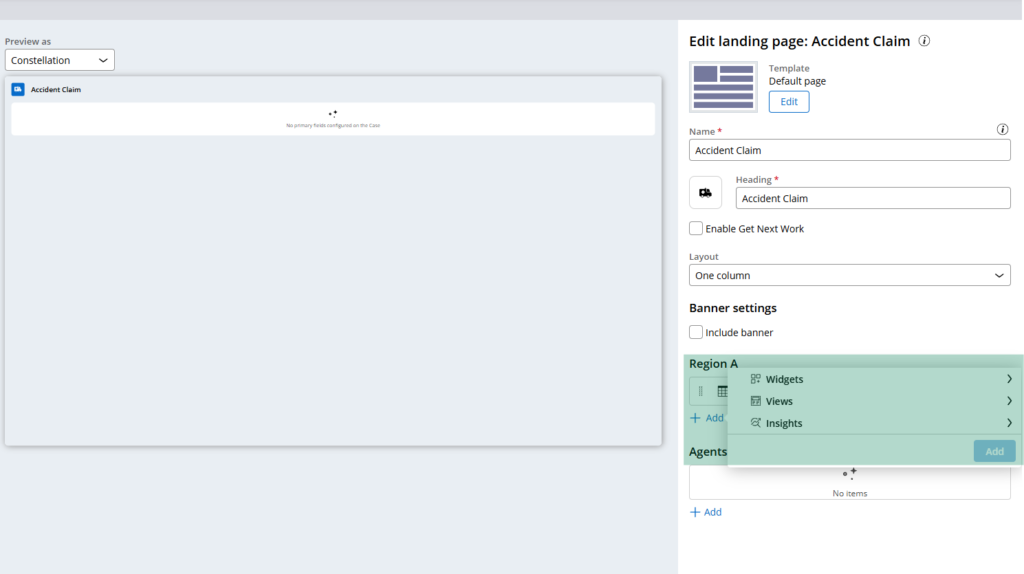
Widgets are out-of-the-box components like announcements, to-do lists, followed items and pulse. Views let you embed custom or case-related displays. Insights are Constellation’s reporting components.
The landing page design is where you shape what your users actually see when they log in. Keep conversations with business stakeholders close here – a lot of the default content may not be relevant, and what matters is surfacing the right information for the specific user role.
Personas and Access
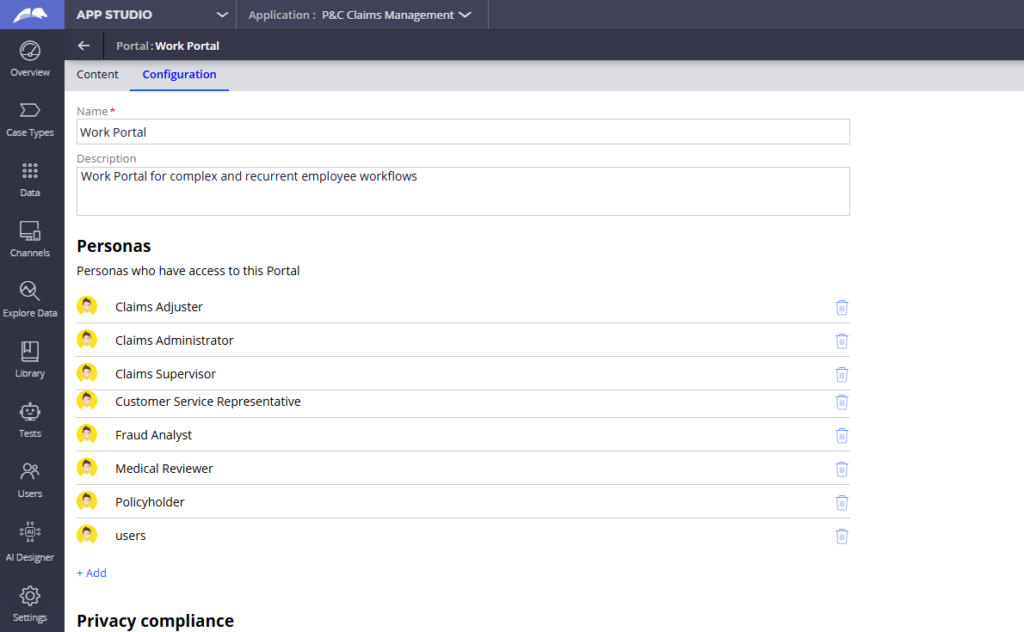
In the portal configuration you can define personas – for example, customer service agent. Each persona can be linked to an access group, controlling which users see this portal and in what context.
Watch the Full Walkthrough
In the video below I walk through creating a CS Portal in App Studio, configuring the landing pages, adjusting visibility, customising the Home page layout with additional widgets and previewing the final result.
Portal design in Constellation is one of those things where the tooling is simpler than it looks. The real work is the conversation with your business users about what they actually need on their homepage – and then knowing how to build it.