


Work group is one of those topics that confuses a lot of Pega developers – including experienced ones.
The concept itself is simple. The implementation has a few quirks that catch people out. Let me explain both.
What a Work Group Is
A work group is a team. That is the simplest way to think about it.
In any organisation, people work in teams. A claims team, an investigation team, an approvals team. Work groups in Pega represent those real-world teams. The key thing that makes work groups different from the organisation structure – which is the org, division, unit hierarchy – is that work groups are independent of it. A team can have members from different departments, different reporting lines, different parts of the org chart. That is by design.
Every operator in Pega must have a default work group.
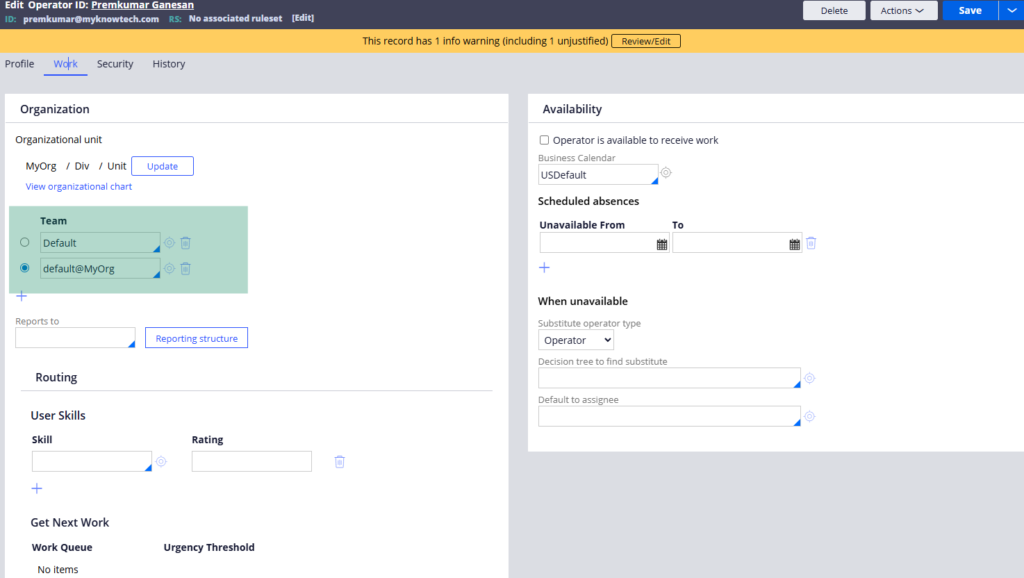
You can assign multiple work groups to an operator, but one must be the default. And every work group can have multiple work queues – the work baskets where cases land and get picked up by team members.
The Relationships That Matter
Operator to work group – one operator has one default work group. They can belong to others too but one is always the default.
Work group to work queues – one work group can have multiple work queues. Cases assigned to a team land in the work queues associated with that work group.
Work group to application – this is where the confusion starts. There is no direct configuration linking a work group to an application. The link is indirect through the ruleset. When you create a work group, you assign it to a ruleset. That ruleset belongs to an application. So the work group becomes associated with the application through the ruleset.
This matters when displaying team information in portals. Pega pulls work groups by application – not by what is configured on the operator. If a work group’s ruleset does not belong to the current application, it will not appear in the application’s team widgets even if it is assigned to the operator.
Configuring a Work Group
The configuration is straightforward. You give the work group a name, assign a manager – the operator who can view team member worklists and work queues – set a default work queue, and optionally add authorised managers who can cover when the main manager is unavailable.
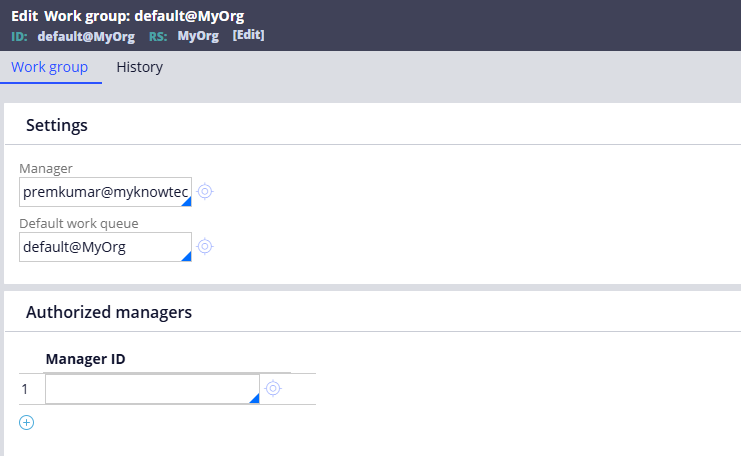
The ruleset you assign determines which application the work group belongs to. Use the implementation-level ruleset for application-specific teams.
Where Work Groups Show Up in Practice
When a case is created, Pega stamps the creating operator’s active work group onto the case and its assignments. This means you can query and report on cases and assignments by team – useful for workload management and reporting.
The Case Manager portal has built-in widgets that show team members and work queues for the current active work group. Managers can also create new teams directly from the portal.
Watch the Full Walkthrough
In the video below I walk through creating a work group, assigning it to an operator, linking work queues, exploring the portal widgets and explaining the ruleset-based application link that trips most people up.
Work groups are simpler than they seem once you stop thinking about them as a Pega concept and start thinking about them as real teams in a real organisation. That mental model makes the implementation make sense.