


From Pega 8.7 onwards, if you want to create files programmatically, repository APIs are the way to do it. Connect File is gone. Repository APIs replace it.
Here is what they are, what they support and how to use them practically.
What a Repository Is
A repository in Pega is a storage location. It can be a local file system path on your server, a mounted network drive, Azure Blob Storage or Amazon S3.
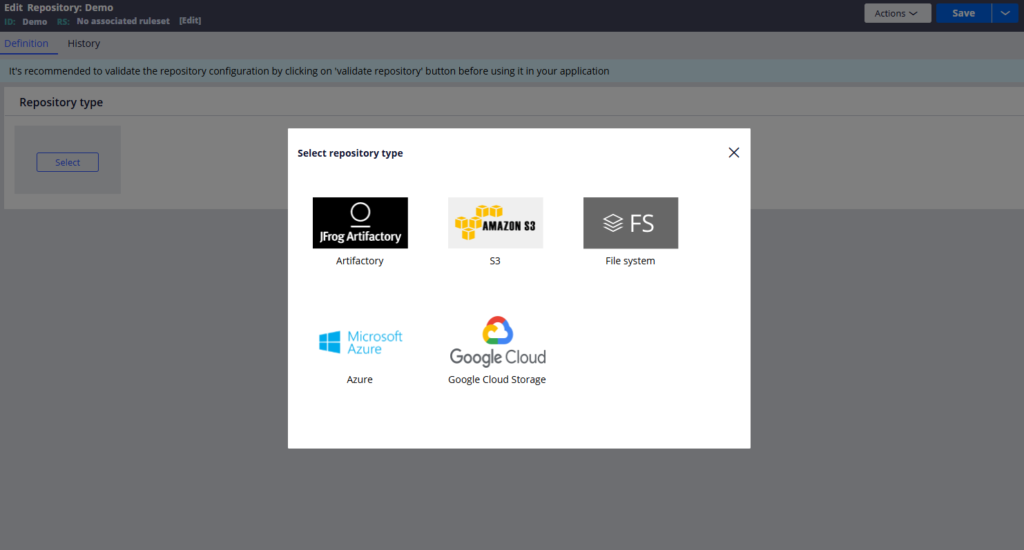
You configure a repository instance in Pega under SysAdmin – Repository, point it to the storage location, and from that point your activities and data pages can interact with it using the standard APIs.
Before doing anything else, create the repository instance. Point it at your storage location, configure any authentication if needed, and use the Validate Repository option to confirm all the file operations – new folder, new file, list files, get file, delete – are accessible.
The Five Core APIs
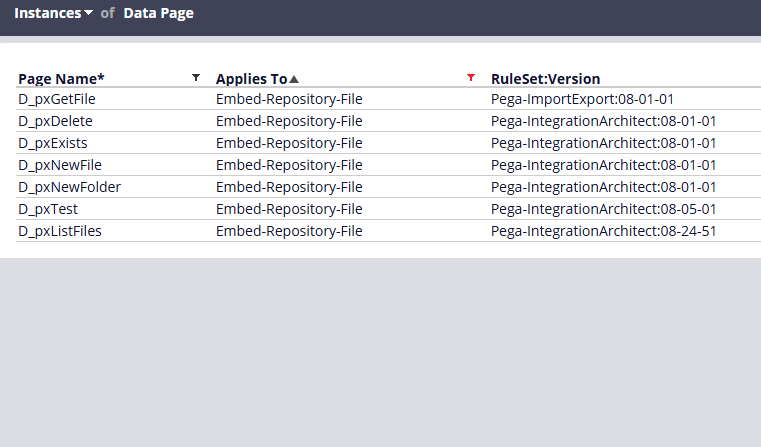
pxNewFolder creates a new folder in the repository. Used by file listener when it creates the completed folder after processing an incoming file.
pxNewFile creates a new file at a specified path with specified content. The content can be passed as a base64 encoded string or as a stream. This is a savable data page, so you drive it from an activity using save data page rather than running it directly.
pxGetFile retrieves the content of an existing file. Returns the content in the pyContents property as base64 encoded data. This is a read-only data page you can run directly or call from a data transform.
pxListFiles lists all files in a given directory. Useful when you need to process or inspect what is in a repository folder.
pxDelete deletes a file or an entire folder. If deleting a folder with contents, use the recursive delete parameter to clear everything inside it first.
How to Use pxGetFile?
Run the data page directly and pass three parameters – the repository name, the file path including the filename, and the response type. Use STREAM in caps as the response type. The file content comes back in pyContents as base64 encoded data.
You can decode this in any base64 decoder to verify the content is what you expect before using it in your integration logic.
How to Use pxNewFile
This one is a savable data page, so the pattern is slightly different. In your activity, load the data page as a step page, set the pyContents property on that step page to your base64 encoded content, and then use save data page to commit it. Pass the repository name and file path as method parameters.
A tip – if your file name contains a dot, wrap the entire filename in double quotes in the parameter. Without quotes, the dot causes a parsing error.
If you want to see a real example of how Pega chains these APIs together, open the pxCopyFromRepository out-of-the-box activity. It gets a file from one repository and creates a new file in another. Reading existing Pega activities is one of the fastest ways to learn the patterns.
How to Use pxDelete
Pass the repository name and the file path. If you are deleting a folder, enable the recursive delete option. If you are deleting a single file, those two parameters are sufficient. The pyDeleted property returns true on success.
Watch the Full Walkthrough
In the video below I walk through creating a repository instance, configuring it against a local file system path, getting a file’s content, creating a new file from that content and deleting a file – all tested live.
Repository APIs are straightforward once you understand the data page pattern. If you have been using Connect File in older Pega versions, this is the direct replacement and it supports cloud storage out of the box.