


Content security policy is a browser-level security layer that controls what content your application is allowed to load from external sources.
Without it, a malicious JavaScript file loaded from an untrusted source could inject code into your application – a classic cross-site scripting attack. CSP prevents that by defining exactly which origins are trusted.
How It Works?
When your application loads in a browser, the server sends a content-security-policy response header. That header contains directives – rules that tell the browser which origins are allowed to provide which types of content. Script source controls where JavaScript can load from. Image source controls images. Font source controls fonts. Style source controls CSS. And so on.
If content arrives from an origin not listed in the relevant directive, the browser blocks it or reports it depending on your policy mode.
Configuring CSP in Pega
In Pega, CSP is configured as a rule under Security – Content Security Policy. The out-of-the-box rule px-default-allow-all does exactly what the name suggests – allows everything, no restrictions.
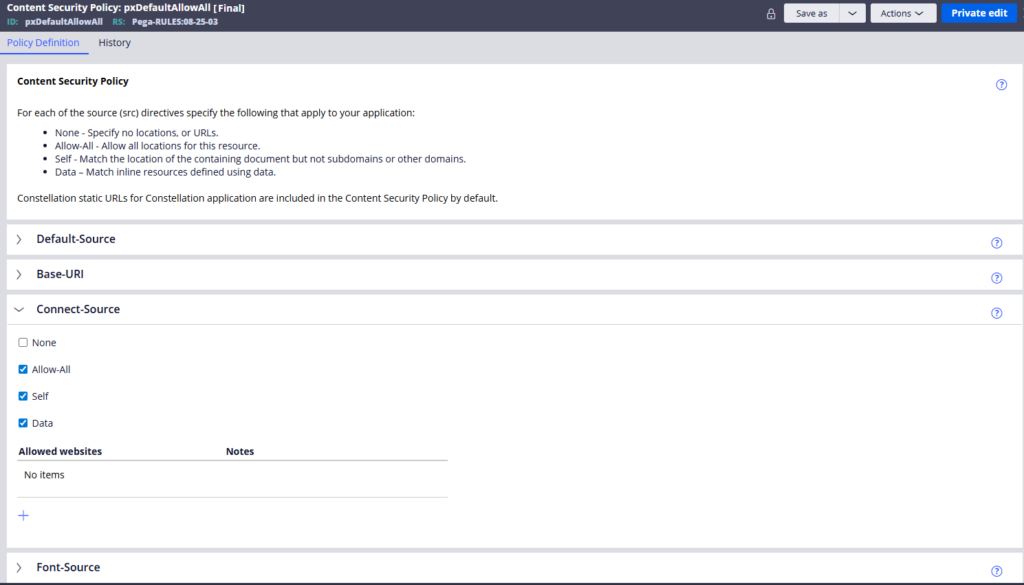
For each directive you get four options. None blocks everything. Self allows only content from your own Pega host. Allowed websites lets you specify trusted external domains. And data allows inline binary objects like Pega’s own embedded images – worth enabling because Pega itself uses inline images extensively.
To apply a policy to your application, go to the Security tab of your application rule, specify the policy name and choose between report-only mode – which logs violations without blocking – and enforcement mode, which actively blocks disallowed content.
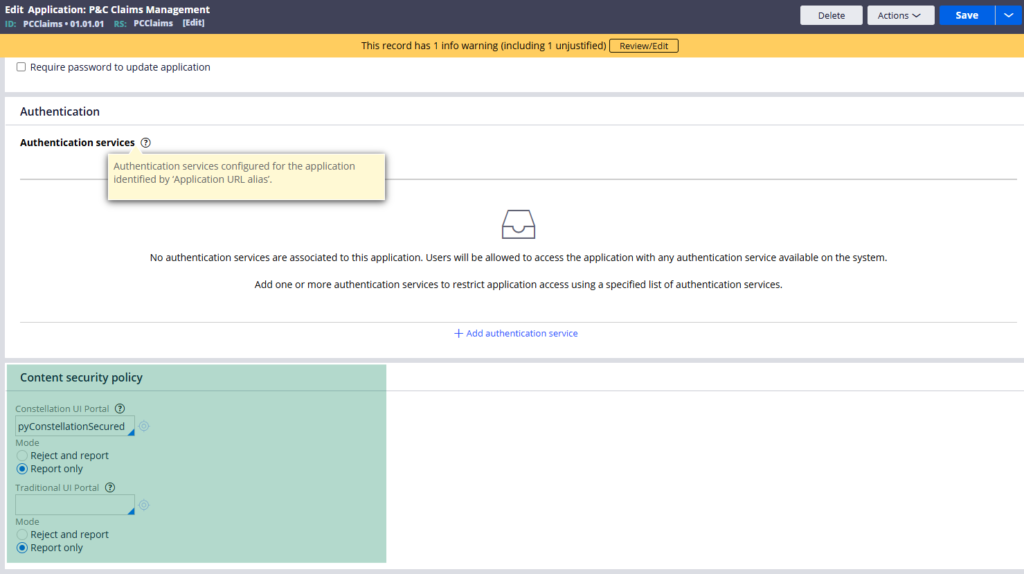
Start with report-only. Check the browser console for violations. Then tighten or adjust your allowed websites accordingly before switching to enforcement.
Update – In the latest Pega versions, no application rule also include a dedicated CSP for Constellation UI & Traditional UI
Debugging CSP Issues
The browser Console tab is your best tool. When content is blocked, you will see an error message specifying exactly which directive was violated and which URL triggered it. That tells you precisely which directive to update and which domain to add to your allowed websites.
Best Practices
Create a dedicated content security policy per application. Do not just use allow-all – it defeats the purpose. Start with self enabled for all directives, then add only the external domains your application genuinely needs – your CDN, your analytics provider, any font or icon libraries.
Note that CSP can also be configured at the Tomcat server level. If you have server-level settings in place, they can conflict with your Pega application settings. The recommended approach is to manage everything within the Pega rule so it is application-specific and version-controlled alongside your other rules.
Watch the Full Walkthrough
In the video below I walk through creating a custom content security policy, applying it to an application, testing blocked images and scripts, and using the browser console to identify and fix violations live.
Content security policy is one of those things that causes confusing errors until you understand the pattern. Once you do, every violation in the console tells you exactly what to fix.