


Pega has three distinct timeouts that affect how sessions and data are managed. Each serves a different purpose and is configured in a different place.
Browser Timeout – Passivation
The browser timeout controls how long an idle session stays in memory before Pega passivates it – moving clipboard pages, threads and requester data from memory into the database or file storage.
This is configured via dynamic system settings or prconfig file. The default is 900 seconds (fifteen minutes). After that idle period, the session data is passivated. If the user returns, the data is reactivated from storage.
Lock Timeout
When a user is working on a case, Pega places a lock on it to maintain data integrity. No other user can edit the same case while the lock is held. But what happens if the user takes a lock and then walks away from their desk?
Lock timeout handles this. After the configured time of idle activity, the lock transitions to a soft lock. A soft lock means another user can request and obtain the lock. If the original user comes back and continues working, the lock becomes active again.
Lock timeout is configured at the system level.
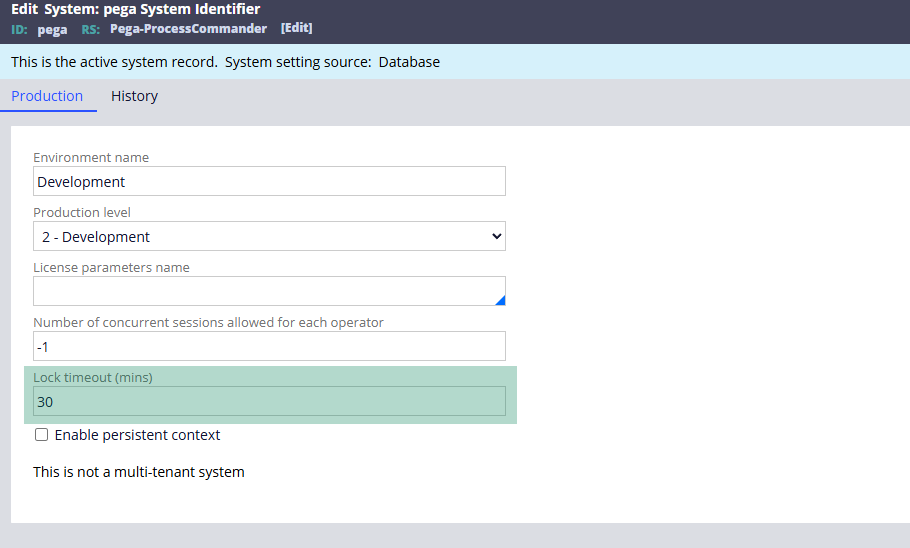
Go to your active system instance and specify the timeout in minutes. The default in is thirty minutes. In production, make sure you are updating your own system instance, not the default Pega system name.
Authentication Timeout
Authentication timeout is what triggers the re-login prompt after a period of inactivity. If you have used the Pega support portal or PDC and seen a “your session is about to expire” pop-up, that is authentication timeout in action.
This is configured at two levels.
The first is the access group.
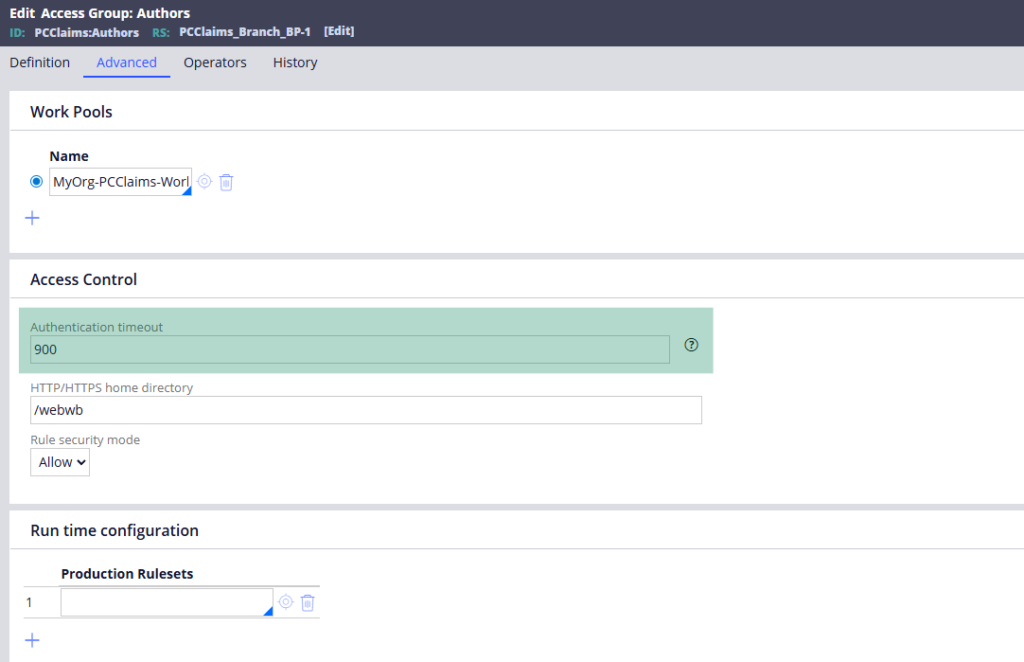
Open your access group, go to the Advanced tab and specify the timeout value in seconds. If no value is set, no timeout is enforced. Setting thirty seconds is enough to see it in action quickly during testing – though in production you would use something sensible like thirty or sixty minutes.
The second is the authentication service.
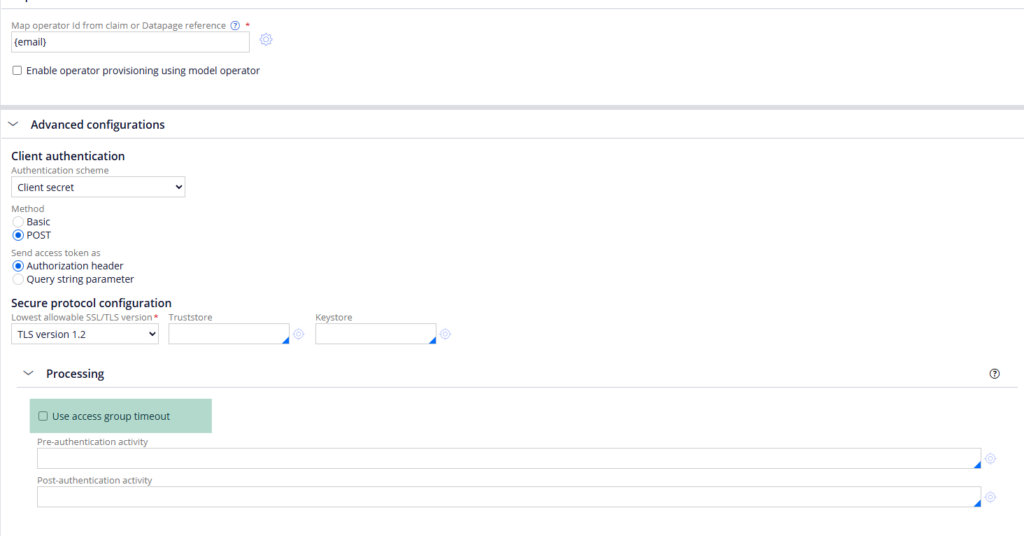
Open your authentication service rule, go to Advanced Configuration and look for the option to use the access group timeout setting. By default this is enabled, meaning the authentication service defers to the access group configuration.
Watch the Full Walkthrough
In the video below I walk through all three timeouts – showing the browser passivation settings in the system configuration, the lock timeout in the system instance, and a live demonstration of the authentication timeout prompt after configuring a thirty-second timeout on the access group.
Session timeouts are one of those infrastructure topics that matter a lot in production environments. Getting them right means users are not losing work to unexpected session drops, and cases are not locked indefinitely because someone left their desk.