


If you have ever seen a Pega report running slowly, unexposed database columns are often the reason.
Here is what that means and how to fix it.
Why Column Exposure Matters
In Pega, case data is stored in database tables. Top-level single value properties on the work page get their own columns automatically. Everything else – embedded properties under page properties like customer details or policy details – gets compressed into a BLOB column.
BLOB stands for Binary Large Object. Pega compresses all embedded case data and stores it there. When you open a case, Pega decompresses it. This is fine for opening individual cases, but when you try to report across thousands of cases on a property sitting inside the BLOB, Pega has to read and decompress every single row to find the value. That is expensive.
The solution is to expose the property as its own column. Once exposed, reporting on it is a simple indexed column query – fast and efficient. Pega will also warn you in the report definition when you use an unexposed column.
Three Ways to Expose Columns
There are three methods available, each with different capabilities.
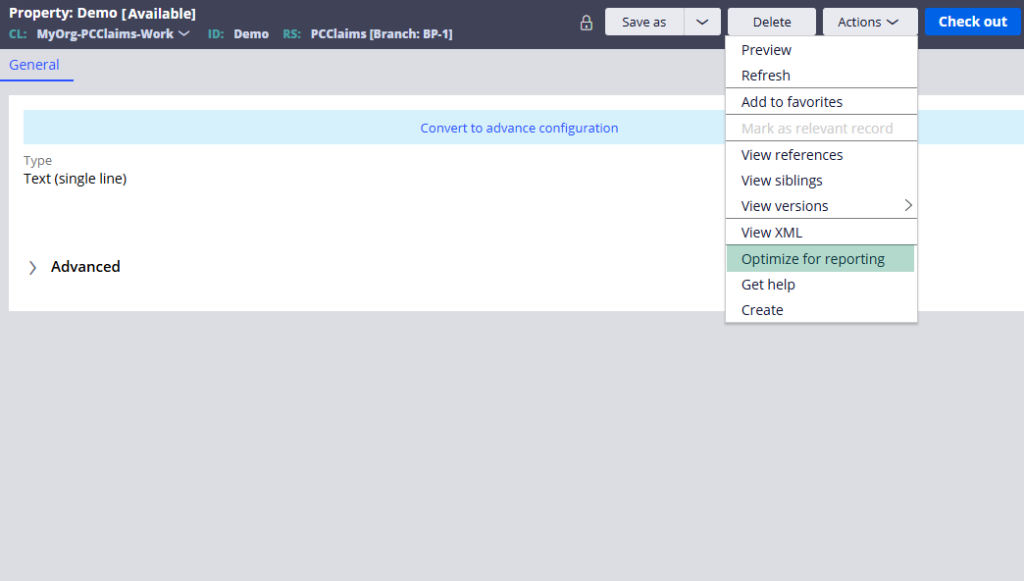
The optimization wizard handles both top-level and embedded properties, and it can also trigger the column population job to backfill existing cases. This is the recommended approach.
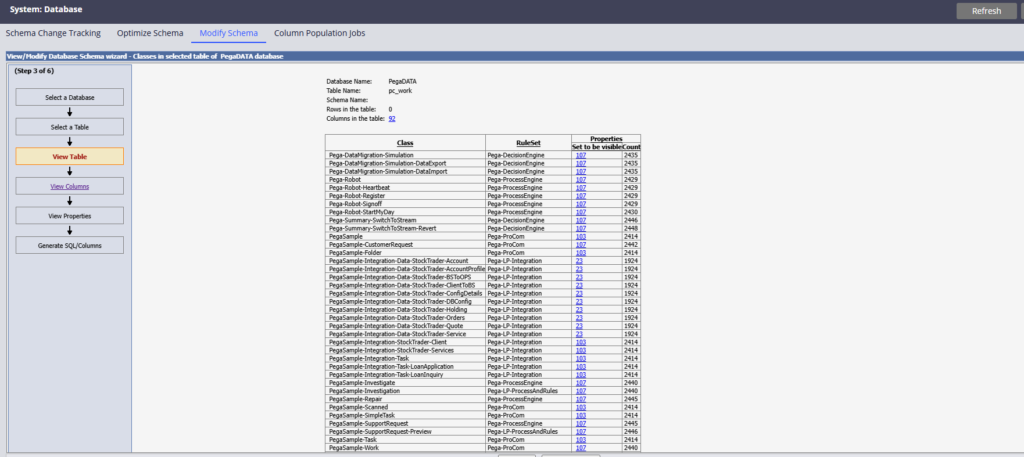
The database modify wizard works only for top-level single value properties directly on the work page. It cannot handle embedded properties and does not include column population. Before it will recognise a property, you need to set the column inclusion to Required on the property’s Advanced tab.
Manual column creation is the most labour-intensive. You create the column directly in the database, then add the external mapping in the class rule form, and finally save both the class instance and the database table instance. Forgetting to save the database table instance is a common mistake that causes errors.
Using the Optimization Wizard for Embedded Properties
This catches people out. If you open an embedded property directly and try to optimize it, Pega uses the property’s own class as context – which may be an abstract class. You cannot expose a column on an abstract class.
The trick is to navigate to the property through the App Explorer under the concrete work class. Right-click on the property from there and select Optimize for Reporting. Now Pega uses the work class as context and the optimization proceeds correctly. The external mapping gets created automatically in the class rule form showing the embedded property path mapped to the new column name.
What to Expect After Exposure
For embedded properties, the column name gets a numeric suffix – like CustomerID_one. This is normal. The external mapping in the class connects the property path to the column name.
For top-level properties, the column name matches the property name directly. No suffix, no external mapping needed.
After any exposure, create a new case and verify the value appears in the expected column using a database query. This confirms the mapping is working correctly before you rely on it in production reports.
Watch the Full Walkthrough
In the video below I walk through all three methods live – exposing an embedded customer ID using the optimization wizard, exposing a top-level case owner using the database modify wizard and manually creating a policy number column – with database verification for each.
Column exposure is one of those things you set up once and forget about – until you do not, and someone reports a slow report in production. Get it right during development and it will never be a problem.