


In this blog article we are going to talk about Role based access configurations, specifically about the Access role and Access role to Object rule configurations.
This article was created using Pega '24 version.
First let’s get some basics about Role based access. Take a simple example of Office building as you see in the below picture.

The Office building has clearly set the access on different rooms based on the role.
Meeting room access – A specific set of employees can get access to secured workplaces or meeting rooms.
Server room access – The administration IT technicians can only get access to server room access
Parking space access – All the employees get access to use the parking space but it is restricted for Visitors.
You see there can be different roles defined who get access to different rooms.
Similarly for Pega application, we can define different sets of roles and provide access to different objects. In the below picture, you can see two different user groups as we saw in the Access group blog article.
Developer and End users.

When you want to implement certain access control restrictions on certain objects, let’s take the example ofa Repository.
You can first define an Access role and configure the Access role to Object for the Repository object. Then you can include the access role to the right access groups.
By this way, the access role can be reused across access groups or user groups.
Hope you can recognize the authorization model ????

We see clearly that Access groups can refer one or more access roles and each of the access role can refer to one or more access role to objects.
What is the Access role and Access role to Object?
Access role is a Security rule instance that can define different roles for the application.
Inside the Access role, you will be configuring the Access role to Object (ARO) to have more granular control over different objects.
What are the different ways to create an Access role?
Just like the other authorization rules, Access roles in Pega can be created in two simple usual ways ????
- Manual creation
- Automatic creation
Automatic Access group creation
When you create a new application using the Application creation wizard, the wizard automatically creates different access groups.
For example – For the Onboarding application we created a few days back, you can check the list of auto-created access roles.
Go to Records -> Security -> Access Roles

Important note: Make a note on the naming convention of the Access role names. The access role name always start with <AppName>:<RoleName>.
We got five Access roles created automatically as seen in the above picture.
Note: On lower pega versions, you may get different number of access roles automatically get created when you create a new application.
Manual creation
We can always create a new access role manually.
Let’s create an Onboarding Manager access role for the Onboarding application.
Records -> Security -> Access role Right-Click and Create a new

Create and Open.
You will get a blank rule form. Save it first.

What are the configurations in the Access role form?
Fill out the single main tab – Role
Role tab

Inherit privileges within the class hierarchy – This is related to another security configuration ‘Privileges’ which we will see in another blog article.
Clone from – Yes you are gonna do cloning ???? It means you can clone a copy from any existing access roles. Just like a Save-as.
Check on the drop-down.

Note: Whenever you create a specialized role for your application, try to see if you can extend or clone from any of the existing Access roles of your own application, before looking into Pega OOTB access role clone.
In our case, we will clone the Pega OOTB access role – PegaRULES:WorkMrg4

Click on Clone
You should see all the AROs automatically added to the new Access role.

Note: You have a button – Manage dependent roles, which is again related to privilege configuration which we will in the next blog article.
All those access classes referred tothe Access role to the Object instance created for this role.
Let’s take one of the examples of ARO.

Just click on the link, and you will see a pop-up where we can define three configurations
- Access controls
- Privileges
- Access settings.

Before exploring all these configurations, let’s quickly understand the different ways, you can create AROs in Pega
What are the different ways to create an Access role to Objects?
You can create ARO in many ways:
- Bulk creation manually, by cloning.
- Individual ARO creation using the grid add icon in Access role.
- Manually from Records -> Security -> Access role to Object -> Create New
- Access Manager – We will see at the end.
Bulk creation manually by cloning
We just did a clone of the PegaRULES:WorkMgr4 access role and by doing so lot of Access roles to objects are created automatically for the application access role.
Go to Records -> Security -> Access role to Objects
You find all the ARO created for the access class / Objects.

Click and open one of the ARO rules. You will find the same three configurations which we saw just now in a pop-up.

Okay, it is time to look into the ARO configuration by creating a new ARO
Business requirement: For the demo purpose, let’s consider the requirement that Onboarding Managers only oversee the process or cannot really create a new Onboarding case. It should always be created by employees not the managers.
There are different ways to implement this. You can even control this from User portal hiding the create icon for example! As an LSA clearly differentiate the security features and engage the security rules to achieve the security requirements.
Let’s say we decided to restrict the Case creation for Managers using Security rules as ARO.
Use the + icon from the Access role instance and create a new ARO

Fill in the configuration in the Pop-up

For now, we will concentrate only on the Access controls.
First step, you have to define the Object / Class name.
Here we are going to have control on the Onboarding Request case type so the Implementation class will be my access class

Now Access control block. You can already read the instructions explaining about different values you can provide on the fields.
Note: The values can be numbers from 0-5 or an access when rule which we will see in next blog article.
Value 0 – It means you prohibit the action completely!
1-5 represents the Production level of the systems.
The standard production levels are
Say you provided Level value 5 – Then the access control will be applicable to the production environment.
Okay, now let’s look at the different controls.

– Read Instances – Controls whether you can Open and read the Onboarding case instances
– Write instances – Controls whether you can Create, Update and Save the Onboarding case instances
– Delete instances – Controls whether you can delete the Onboarding case instances
– Read rules – Controls whether you can read rules of applies to class Amazon-In-Onboarding-Work-OnboardingRequest
– Write rules – Controls whether you can modify rules of applies to class Amazon-In-Onboarding-Work-OnboardingRequest
– Delete rules – Controls whether you can delete rules of applies to Amazon-In-Onboarding-Work-OnboardingRequest
– Execute reports – Controls whether you can run reports of applies to class Amazon-In-Onboarding-Work-OnboardingRequest
– Execute activities – Controls whether you can run activities of applies to class Amazon-In-Onboarding-Work-OnboardingRequest
For our business requirement, we will just allow the managers to Read instances and execute reports. For remaining everything you can either leave it empty or 0.

Make sure to save the configuration.
This should create a new entry in the Access class grid

You will also see a new Access Role to Object instance created in the database

Okay, we are good with creating a new access role and access role for the object.
Now It is time to test the new access rules by configuring the access role in the access group instance.
Step 1: Create a new access group and specify the newly created access role.

Step 2: Tag a test Operator with the new access group

Step 3: Login the Operator ID and create/Update a case.

I don’t get the usual error which I get when I use UI-Kit theme application, but still, it is restricted and I am not able to create a new case ????
You can change the Access level for different controls like running reports in ARO and verifying various functionalities.
So by this way, using the Access role and Access role to Objects you can have more control over the Objects or instances.
This is all about AROs in case instances.
It is good to know some OOTB Administrator roles in the designer studio.
Database administrator role.
When you are in Pega Cloud or Pega Community Edition, you get some options to use and engage with the database and use select query, create indexes.

Normally you don’t get those navigation unless you have the database administrator role in your access group.
You can add this role to your current access group

Save, login and test the same navigation.
You get three new Navigation to perform the database administration tasks.

To make it more interesting if you click and open the PegaRULES:DatabaseAdministrator role, then you can find the right ARO configured on rule- and data- objects

Pega uses privileges to secure the database administration navigation visibility.
Repository administrator role.
When you try to create a new repository instance in pega, by default you may get the below authorization error

This can be solved when you add the PegaRULES:RepositoryAdministrator access role.

After saving the access group, you can test creating a repository configuration. You should be able to create it ????
Before ending this lecture, let’s briefly touch about the Access Manager configuration
Access Manager
This is the low-code configuration of Access roles and Access role to Objects.
This is also the recommended approach by Pega for creating AROs.
In this article, I will just concentrate only controlling AROs using Access Manager.
Designer studio -> Org & Security -> Access Manager -> Work & Process
Opens up a landing page. You will see the access groups in a dropdown and Access roles and AROs are in the matrix.

You can select the Onboarding:Managers access group.
Expand the Onboarding Request case type and click on the icon.
There you can control the access behaviour

You can see the legends for Full access, No access and Conditional access.
Full Access – Updates the respective ARO – 5
No access – Updates the respective ARO -0
Conditional – We can specify Access ‘when’ rule
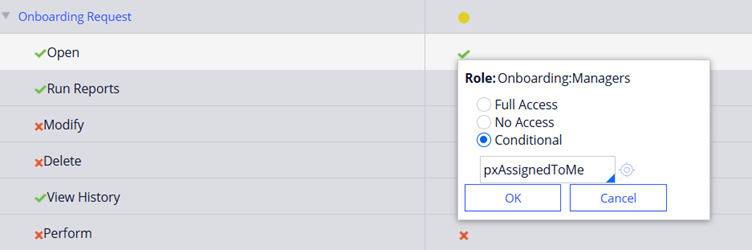
After submitting, you can verify the ARO rule form for the Onboarding request case type.
It will get updated automatically. See how Pega reduces the developer workload ????
Cool right?! Pega makes it everything as a simple configuration ????
Finally just like, OperatorID and Access group system pages, you can also find all the access roles for the current operator from the clipboard under system pages.
You can find it as an embedded value list property under AccessGroup page.

We are at the end of this blog article.