


If your Pega application allows users to upload documents throughout the case lifecycle, those attachments are by default stored as binary stream data in the Pega database. Over time, especially with large files, this grows into a significant storage problem.
Storing attachments in an external file storage – Azure Blob, Amazon S3, or a local file system – reduces database size, lowers storage costs and puts files where files belong.
What You Need to Know Before You Start
A few important limitations to understand before making this change.
Only file-type attachments can be stored or migrated to file storage. Link attachments and URL attachments are not eligible.
Once you configure your application to use file storage, do not revert back to database storage. If you do, you will end up with attachments split across two locations – some in the database, some in file storage. This creates a maintenance nightmare. Make the decision deliberately.
You also lose the ability to attach the same file multiple times to the same case. Across different cases it is fine, but within a single case it is not supported with file storage.
Configuration – Two Steps
There are two things to do. First, configure the application to store all new attachments in file storage going forward. Second, migrate existing attachments from the database.
You can do these in either order. If you have a small number of existing attachments, migrate them first. If the volume is large and new attachments are still coming in, configure file storage first so new uploads go to the right place immediately, then run the migration in the background.
Step 1 – Configure File Storage for New Attachments
Open your application rule and go to the Integration section.
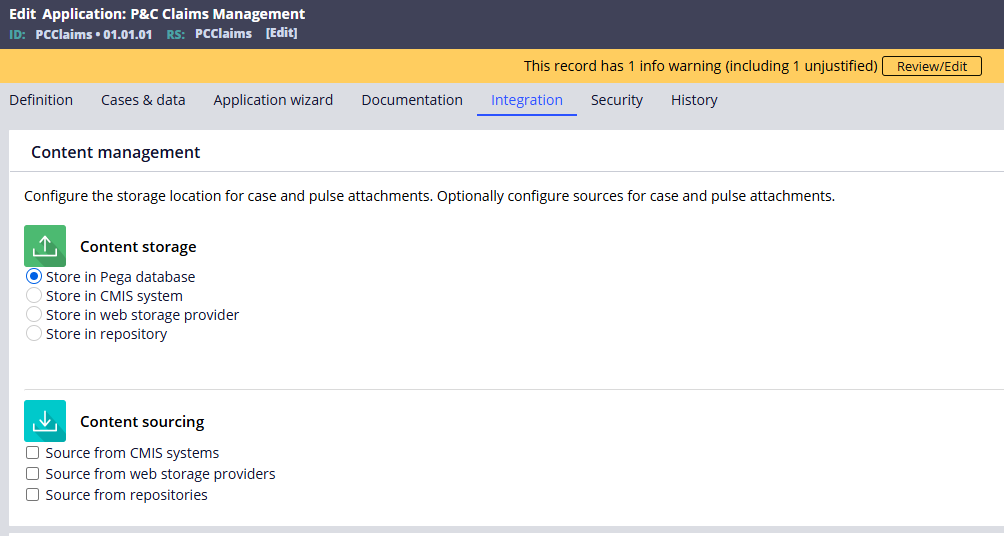
Under Content Management – Content Storage, the default is Pega database. Change this to your repository instance – the one pointing to your Azure container, S3 bucket or file system path.
Set the target folder if needed, then save. From this point forward, all new file attachments will be written to the external file storage. The work attach instance still gets created in the database as a linking reference, but the file content itself goes to the repository.
Step 2 – Migrate Existing Attachments
Go to System – Release – Upgrade – Attachment Migration.
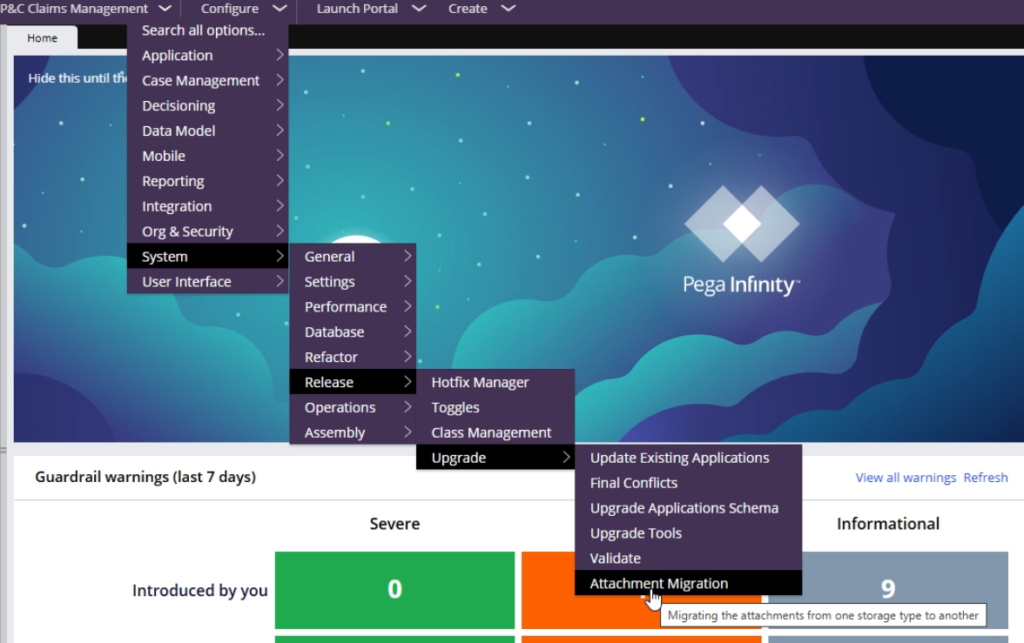
To get an accurate count of attachments eligible for migration, you need to specify the correct document class. Pega uses the case class defined in your application instance to determine which attachments to count. Once specified correctly, you will see the number of database-stored attachments ready to migrate.
Click Start Migration. Pega uses a queue processor – pzAttachmentMigrationProcessor – to handle the migration in the background. Make sure this queue processor is up and running before you start. Once complete, verify in your file storage repository that the migrated files appear. Check the original work attach instance and confirm the stream content has been removed from the database.
Pega Cloud vs On-Premise
With Pega Cloud, a default file storage is often provisioned as part of your contract. For client-managed or on-premise deployments, you choose your own file storage and configure the repository instance accordingly.
Watch the Full Walkthrough
In the video below I walk through the full setup – configuring a repository for attachments, updating the application content storage setting, attaching a new file and verifying it lands in file storage, then migrating an existing database attachment using the migration tool.
Attachment migration is one of those housekeeping tasks that pays dividends over time. The smaller your database, the easier everything else becomes.