


Data stored in a database is often technical. What gets displayed to end users should be meaningful.
That gap is where SQL functions come in.
The Problem They Solve
In Pega, report definitions query your database and display the results. But sometimes the raw data is not what you want users to see. Status codes, technical values, abbreviated references – they make sense in the database but not on screen.
For example, a case status of “Resolved Completed” might mean nothing to a business user. They want to see “Closed”. The underlying value stays the same in the database. The display changes. That is exactly what SQL function aliases handle.
Functions vs Function Aliases
Before building one, the distinction is worth understanding.
A function contains the technical implementation – Java code that accepts inputs and returns an output. A function alias gives that function a meaningful name and description that makes it accessible from the report definition interface. When you use SQL functions in report definitions, you are working with function aliases in the embedded user function category.
The easiest way to learn how they work is to look at an existing one before creating your own. Go to Records – Technical – Function Alias and open one of the out-of-the-box examples. Reading how Pega built its own functions teaches you the pattern for building yours.
Creating a Custom SQL Function Alias
In this example, the requirement is to display “Closed” whenever a case status is “Resolved Completed” and display the actual status value for everything else.
Create a new function alias under the embedded user function class. The input parameter is the status value. The return type is text. The source is the SQL logic itself – written as a CASE WHEN statement. When the input equals ‘Resolved Completed’ then return ‘Closed’, else return the input as-is.
One thing to get right – string values in the SQL source must be wrapped in single quotes. If you forget them, the database treats the value as a column name and throws an error. This is a common mistake and easy to miss.
The pattern template and echo template fields control how the function appears in the report definition UI when you use the calculation builder. Keep them readable and descriptive so the function is easy to identify and reuse.
Using the Function in a Report Definition
Once the function alias is saved, go to your report definition and open the calculation builder for the column you want to format.
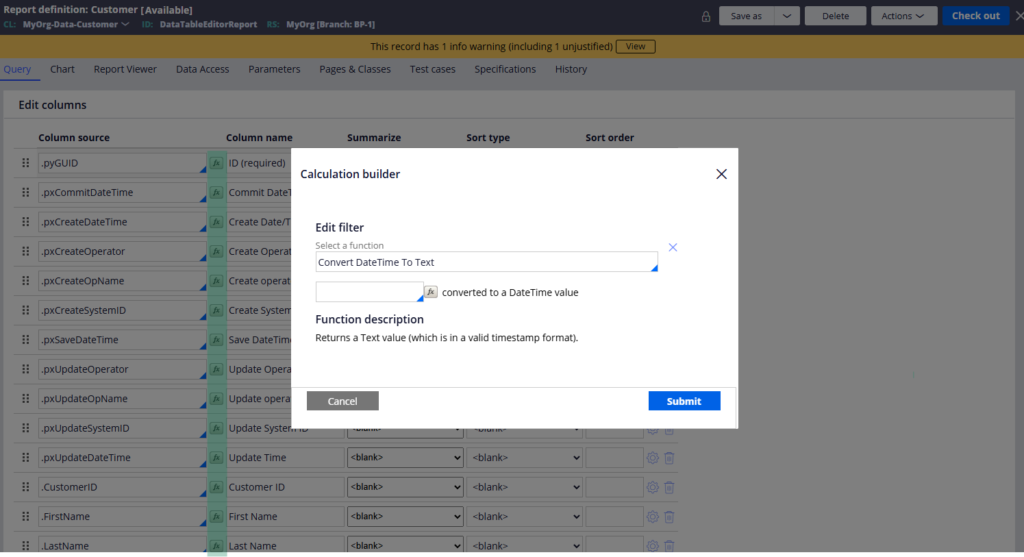
Your new function will appear in the list. Select it, map the input to the relevant property – in this case py status work – and submit.
Run the report definition and the translated values appear. Resolved Completed becomes Closed. Every other status displays as-is.
Watch the Full Walkthrough
In the video below I walk through creating the SQL function alias from scratch, referencing an out-of-the-box example to understand the pattern, plugging it into a report definition and testing the output live.
SQL function aliases are one of those tools that seem niche until you hit a real requirement where raw database values need to be translated for end users. Once you know how to build one, it takes ten minutes.