

If you followed the Okta SSO video, this one will feel familiar.
The SAML workflow is identical. The identity provider is different. Auth0 replaces Okta, and there are a few small differences in how the setup works on the identity provider side. Otherwise the Pega configuration follows the same pattern.
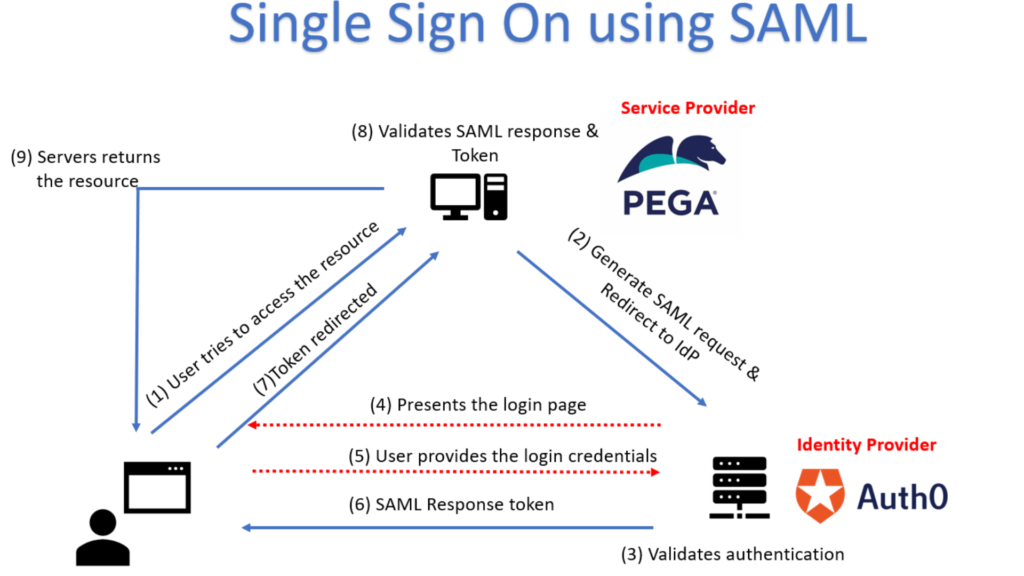
This is worth knowing because in real projects you will encounter different identity providers depending on the client. Getting comfortable with more than one makes you a more confident implementer.
Auth0 Administrator Setup
In Auth0, setup is straightforward. Create a user in the User Management section, then create a new application of type Regular Web Application. Under the application’s add-ons, enable the SAML integration and provide the Pega assertion consumer service URL.
One difference from Okta worth noting – in Auth0 you do not need to individually assign users to the application. Users under the connected database authentication are already available to the application automatically.
Once the application is set up, you can download the IdP metadata directly from the Usage tab and import it into Pega.
Pega Authentication Service Setup
Create a new authentication service in Pega of type SAML 2.0 with Auth0 as the alias. Copy the ACS URL from the service provider settings and provide it to Auth0. Import the IdP metadata file. Enable operator provisioning with a model operator. Disable request signing since Auth0 only signs the SAML response, not the request.
For operator identification, instead of using the name ID from the SAML response – which Auth0 generates as a long unique string – use the email address attribute from the SAML response. This gives you a clean, readable operator identifier. Just copy the full attribute name from the SAML tracer and reference it in the operator identification field under curly braces.
You can also add an attribute mapping for email address so it gets saved to the operator’s profile automatically.
Debugging SAML Authentication
Two tools are worth having when things do not work as expected.
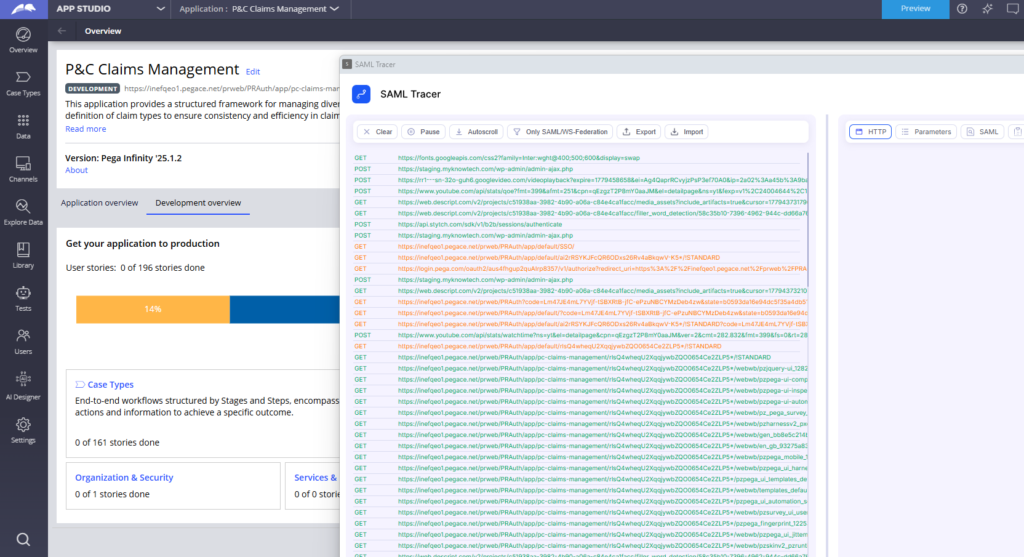
The SAML Tracer browser extension lets you inspect the SAML request and response in real time – including the name ID, all attribute values and the relay state. This is your first stop when troubleshooting.
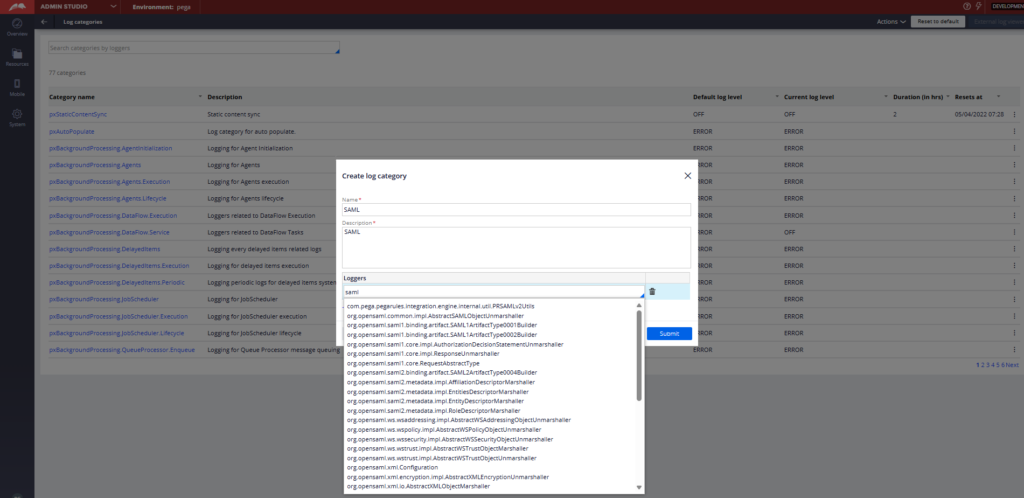
The second option is enabling SAML loggers in Admin Studio. Go to Log Categories, create a new category, search for SAML and add all the loggers that reference SAML V2. Set the log level to debug. Next time SSO runs, the Pega log file will show you every step of the SAML authentication flow in detail – relay state handling, keystore validation, response signing checks, everything.
Between those two tools you can diagnose almost any SSO issue without guessing.
Watch the Full Walkthrough
In the video below I walk through the full Auth0 setup – user creation, application integration, SAML add-on configuration, Pega authentication service setup, email attribute mapping and live debugging using SAML Tracer and log categories.
Once you have implemented SSO with two different identity providers, the pattern becomes second nature. As a practical exercise, try implementing the same setup using Mini Orange as the identity provider. You will find it straightforward.