


In this blog article, we will see how we can authenticate the application user credentials against the attributes stored in the apache directory server.
It is mandatory to visit my another blog article of LDAP set up before proceeding in this article.
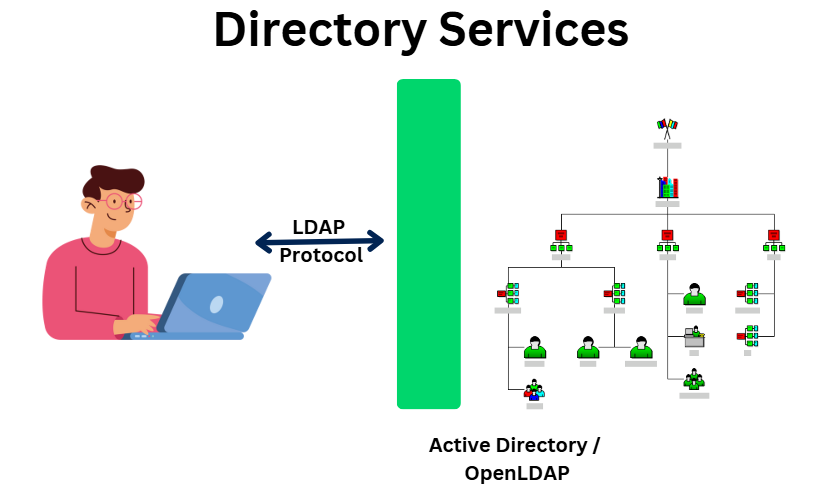
How to configure the LDAP authentication in Pega?
Let’s start by choosing the right servlet. In the authentication introduction post, we already saw the usage of web.xml file
You will find the file in the right directory
Tomcat->webapps->prweb->WEB-INF

You see Pega already provides 3 servlets for LDAP authentication. These servlets are reserved for the configuration wizard – WebLDAP1, WebLDAP2, WebLDAP3

So, no need to add or update servlets, we can reuse the existing servlets.
Now its time to start with the Pega wizard.
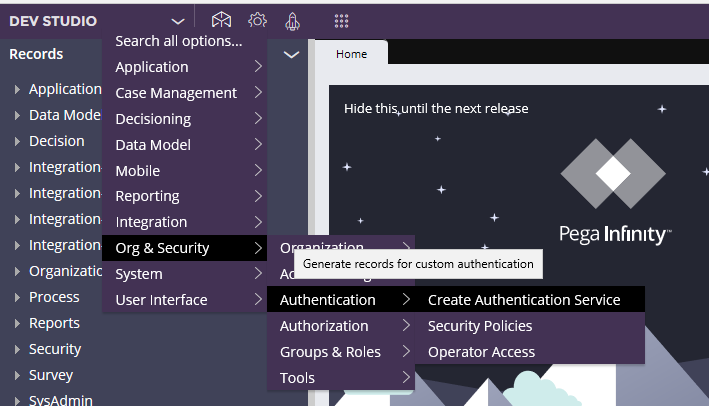
Step 1: Designer studio -> Configure -> Org & security -> Authentication -> Create authentication service
Step 2: select the authentication type as Custom and Name as WebLDAP1. We will use the first servlet.

Click create.
Step 3: You will see the custom authentication service rule created with empty field values.
What are the configuration points in the authentication service rule?
There are 3 main tabs

- Service
- Mapping
- Custom
Service tab
You have three blocks here to configure
Custom authentication activity
There are two authentication activities you can configure. Pega already provides you with the default activities for LDAP.

Timeout Activity
Once the timeout exceeds, then we can challenge the user to enter the credentials again. Specify the activity – AuthenticationLDAPTimeout.
The activity performs the following actions
- Presents the challenge stream
- Validates the credentials against the LDAP server.
You can explore the activity on your own.
So, where do you configure this timeout settings?
Switch to the custom tab and scroll down
Timeout options

Use PegaRULES Timeout – It uses the authentication timeout specified in the users access group. You can also use timeout managed by external services.
Now challenging stream, you can specify 2 options
1. Use basic authentication for timeout – It throws the default browser pop-up window to gather the credentials
2. Timeout challenge stream – you can specify a HTML form to validate the crendetials
Redirect URL – You can also specify a redirect URL when the session timesout!
Let’s get back to the activity.
Authentication Activity
Specify the default pega activity – AuthenticationLDAPWebVerifyCredentials

The activity performs the following actions
– Do a lookup on the LDAP server and validates the credentials
– Once successfully verified, it checks if the operator already exists
If yes – do some normal updates with the LDAP attributes.
If No – Uses the model operator and creates a new operator on the fly.
– If the credential verification fails, then failure stream can be presented.
Please explore the activity on your own.
JNDI binding parameters

This block is responsible to define the binding parameters to connect to the LDAP server.
Initial context factory – specify the java class name for JNDI connect factory. The default value is com.sun.jndi.ldap.LdapCtxFactory
Directory – You can either specify the URL directly or via JNDI entry.
Remember we use the LDAP protocol and so ldap instead of http.
Use the port – 10389 and the resource name for the partition o=myknowpega.
ldap://localhost:10389/o=myknowpega
Just a glimpse of our partition from apache directory studio.

Trust store – If you use secured LDAP connection, then use the trust store that contains the server certificates.
Bind distinguished name and password
Remember when we create a new connection to the LDAP server from the studio, we specified the binding parameters. Specify the same in the fields.

Password is still ‘secret’ ????
Once done, save and do the test connectivity.
Heel Goed !!

Let’s give the final touches.
Search Parameters

You can specify the search parameters in this block
Directory context – If you want to search the credentials under a certain branch in the apache directory, then you can give the directory context. In my scenario, I saved the employee names in the top directory context under o=myknowpega (already specified in the URL)
So, leave it empty
Search filter
(<searchname>=%V) – (uid=%V)
%V – dynamically gets substituted by the user name you enter in the login screen. So here, the user name is searched against the uid attribute value in the LDAP entries.
Mapping tab

You can specify the attribute to property name mapping.
First let’s specify some additional attributes in the apache directory server.

Remember to always provide the credentials in the attribute – userPassword.
Note: Org, div and unit are key mapping to identify the model operator
Save the entry once you add the attributes.
Get back to Pega and add the mapping.

Once credentials are successfully verified , the attributes will be mapped to the operator record.
Custom tab
This screen is basically about providing the challenge screens at the initial stage or failure stage.
Please explore it on your own 😀 Nothing big. You can leave empty to accept the default behavior ????
Let’s test the LDAP authentication
Scenario 1: Operator already exists in pega database
Step 1: Save the authentication service rule form with the configuration as shown above.
Step 2: make sure your LDAP server is up and running
Step 3: now launch your LDAP URL
http://localhost:8080/prweb/PRWebLDAP1
Provide the username and password you saved in LDAP directory

We have successfully logged in pega validating against LDAP server.
Step 4: Open the operator rule form. You will see the operator record is updated with LDAP attribute mapping.

Scenario 2: Operator does not exist in pega database
Step 1: Add a new entry in the LDAP server for the new employee.
Please follow my previous article to know the steps to add new entry in the LDAP server.
I added an entry for luffy.

Step 2: In this scenario, Pega needs a model operator to save as and create a new operator.
It uses the model operator specified in the Unit instance to create a new operator. Make sure a model operator is available in the organization unit instance.

You can again look into the activity – AuthenticationLDAPWebVerifyCredentials activity where we open the Unit instance and use the model operator.
Step 3: Now launch the LDAP URL again and provide the credentials specified in the apache directory server.
Username – luffy

Step 4: Open the operator record and verify the operator is created today and the attributes are rightly mapped.


Done ????