


In this blog article, we will understand how to use Joins in Report definition rule, we will talk about Class joins, Declare Index Joins, Associations and Sub-Reports.
Update: The concept of Report Definition rule remains the same across different Pega versions. Most of the screenshots in this blog article were reused from Pega 7 version and few were updated. Use this blog article to learn the concepts and you can try the entire tutorial in the latest versions as well.
In another blog article, we saw a simple example to fetch the data from a single table.
However there may be situations, where we need data from more than one table.
Can Report definition support this? Yes it is.
In SQL, you might have come across the terms – INNER join, Left OUTER Join, Right OUTER Join.
Pega supports the same joins in the report definition rule.
In facebook, you know a term ‘Friend of a Friend’ – ‘Mutual friend’’. A mutual friend can view some private details this, that!!Here you need some common friend, to view few details. Like the same, if you need data from 2 tables combined, then you need some common column – This is where the join takes place.
What is Inner join, Left outer join, Right outer join?
I have two tables – States table and Countries table

Here, you can see Country code is a friend of friend to both the tables.
I need to fetch 4 columns – StateID, State Name, Country Code (States table) and Country Name (Countries table)
Left table – States; Right table – Countries
a) INNER Join
Also called as simple join.
The below picture shows you the result of Inner join.

It takes out rows which are common(intersection) in both the tables by Country Code. Leaving out Country code 04 and 05
b) Left Outer Join
Includes all the rows in the left table and uses only data from the right table.

You can see all 5 entries are in the results table. Right tables are just used to get the data.
c) Right Outer Join
Includes all the rows in the right table and use only data in the left table.

You can see all 4 countries are listed. These are simple Database joins. Let’s see how we can achieve similar requirements using Report definition rule.
Requirement – I got a requirement to display the sales details and the assignment details.
Here I need to join two tables – Work table and Assign-Worklist table.
Let’s see the records in both the table.
Sales table – You can see 4 entries.

Worklist table – You can see 2 entries.
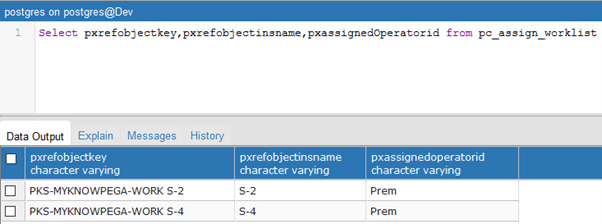
Here pzInsKey in work table and pxRefObjectKey in worklist table, both points to case Key and can be considered friend of friend. You can join using those columns
Step 1: Open the Report definition rule – Data access tab
Step 2: Fill out the class joins block.

Already the report definition is reporting on sales class (applies to).
Prefix – Specify a prefix for the joining class
Class name – Join class name.
Type –
a) Only include matching rows – Inner join
b) Include all rows in this class (Applies to class) – Left outer join
c) Include all rows in joined class (worklist) – Right outer join
Edit conditions –

Column refers to – Sales work table column
Value refers to – Assign-Worklist table column
You can add one or more rows as filtering conditions. Prefix A is used to identify the joined class columns.
Note: You can also add more than one class joins in a report definition rule.
Step 3: Go to Query tab and add the A.pxAssignedOperatorID column

Step 4: Run the rule and test it.

You can see the inner join results
Left Outer join
Step 1: update the class join to type
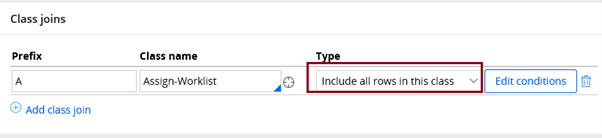
Step 2: save and run the rule.

You can see all rows are included from the Sales class with data only copied from the joined class.
There are no entries for S-1 and S-3, so no Operator ID.
Right Outer join
Step 1: Update type to ‘include all rows in joined class’

Step 2: save and run the rule.

You can see all rows (2) in the joined class are included and the other columns are just filled from the left table.
Based on your requirement, use it wisely.
Declarative index Joins

Declarative index joins is similar to class join with the exception that instead of class name, we specify declare index name
Associations
What is Association rule?
– It is very simple. If you find, you join two class instances frequently in report definition, you can create an association rule.
– Association rule explicitly defines the Join condition between two classes.
– Pega provides many standard association rules. You can also create one.
How to create a new association rule?
Step 1: Records ->Sysadmin -> New

Step 2: Specify the configuration points.

Note: Prefix should be same as the association rule name.
Step 3: Refresh the report definition

Still no association rule?????? Cool.
You need to refer a property in the query tab.
Step 4: Add a column using association prefix.

Step 5: Now check the data access tab.

You can see the association rule added.
Step 6: run the report and check the Inner JOIN results.

Association supports reusability in class joins.
Sub reports
What is a Sub report?
– Sub report is a name we refer to report definition rule, when it is used in another report definition rule.
– To satisfy complex requirements and use the results of the existing report definition, we use sub reports.
Let me explain you with an example.
Requirement – I have a simple requirement, to get the list of operators who don’t have any assignments ( Assign-Worklist) entry.
My design choice is
1. Create a main report definition rule on operators class
2. Create another report definition (sub report) on worklist class.
3. Use the worklist results to filter out the operators
Step 1: create a new report definition rule in ‘Data-Admin-Operator-ID’ class.

Note: I used organization to filter out default pega operators.
Step 2: run the report definition and check the operators list.

Step 3: Create another report definition rule in Assign-Worklist class (sub report)

Step 4: run the report definition to get the list of operators who have assignment in their worklist.

There are 2 assignments and both are in my name.
Note: This is the ideal candidate to use remove duplicate rows option.
Step 5: Now go to ‘GetOperatorsList’ report definition and add the sub report.

Step 6: configuration is the key part here. Click on configure option

You can select number of rows returned from the sub report – More than 1 row
Where will you use this sub report?

I selected right side of filter.

You can specify filter conditions for the sub report results.
You have an addition type option – Do not match rows.
Note: If you don’t use any join condition, you can choose – Do not match rows (I choose this)
Ignore filter conditions in sub report – We can also ignore the filter condition in sub reports.
Local names for sub-report columns
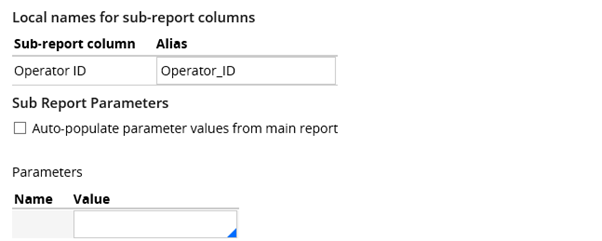
You can specify some local names for sub report columns.
You can also specify the parameters for the sub reports. If you use the same parameter value in both reports, you can check the Auto-populate option.
Step 7: Now add the filter condition in the main report.

Step 8: save and run the rule

Prem is gone ????
Please follow the below link to know more about when and how to use sub reports.
Hope you enjoyed this post.