


In the previous articles, we explored how to create a file listener, an email account, and a service email using the Email Wizard and this article we will create a new case using Service Email
The fundamental processing logic for all listeners in Pega is consistent: the listener monitors a specific location for a message, file, or email and invokes a service rule for processing.
Similarly, in email processing, the listener monitors a specific folder. When an email arrives, the listener invokes a Service Email rule to handle the message. In essence, the Service Email rule is the heart of email processing in Pega.

By leveraging email services, you can perform virtually any type of processing. Since you are utilizing a service activity, you have the full power of Pega activities at your disposal.
In real-world scenarios, most use cases occur at the case level – specifically, either creating a new case or updating an existing one.
- Create Case: This is a straightforward process where you use the data from an incoming email to generate a specific case type.
- Update a Case / Manage Conversations: This is the most common email use case in Pega. To update a case, the system must first identify the unique Case ID. This requires the sender to indicate which case the email corresponds to a process often referred to as “supporting email conversations.”
I will be splitting the Service Email series into four distinct use cases:
- Creating a case using data from an incoming email.
- Using approval actions in assignment notifications to update cases automatically. This use case utilizes Subject line data to identify the corresponding Case ID.
- Managing email conversations within a case. This will showcase how to use the Message-ID header to identify the correct Case ID.
- Handling Delivery Status Notification (DSN) messages. This will demonstrate how to use the Thread-Topic field to identify the corresponding Case ID.
By the end of these four articles, you will have mastered the nuances of Pega email servicing. First, let’s explore the configurations for the first use case.
How to Create a New Service Email Rule
- Creation via the Email Wizard
- Manual Creation
Records -> Integration Services -> Service Email -> New

Rather than explaining every field – many of which share configurations with other service rules, I will focus on the Service Email rule created in my previous post.

The rule form contains three primary tabs:
- Service tab: Used to specify the Primary Page and the Service Activity name.
- Request tab: Handles data mapping from the email to Pega.
- Response tab: Configures the automated reply sent back to the sender.
Request Tab
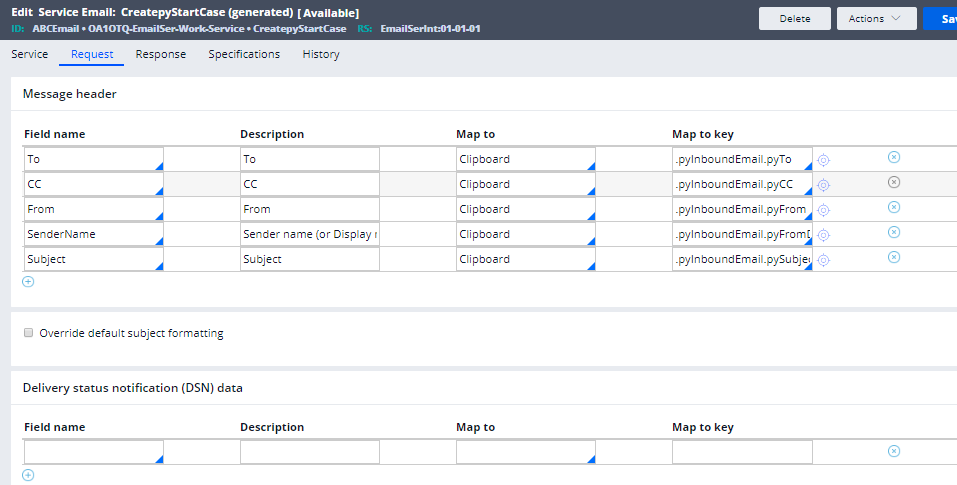
The Request tab is responsible for parsing and mapping email content into Pega properties. The Email Wizard automatically populates three key blocks:
a) Message Header: In this block, email headers (To, CC, Subject, From, etc.) are mapped to Pega properties. By default, there are five mapping fields.
Keep in mind that the Pega engine maintains control over email service request mapping. If you need to map additional headers, simply add a new row and use the down arrow to view available fields.

Note: This dropdown is not limited, you can always add your other message headers that are supported by email providers
b) Delivery Status Notification (DSN) Data: We will explore this in the fourth use case; for now, it can remain empty.
c) Message Data: This maps the entire email body to the Pega property .pyBody.

Note: There is no “Add Row” option in the Message Data section because the entire body is mapped as a single entity.
Important note: Pega utilizes a predefined data model for this mapping. All properties follow the structure:
.pyInboundEmail.<Property>

Response Tab
The Service Email response typically involves sending a confirmation email back to the original sender.

You can configure different response templates based on processing conditions. For example, you might send an acknowledgement for successful processing and a different template for errors.
Expand the Message Contents section to see the configuration options.

Pega offers various options to create these templates, with Correspondence rules being the ideal choice. While the Wizard prefills this tab, you can always override the settings to suit your needs.
For this first use case, no additional external configuration was required beyond the listener and email account set up in the previous post.
Testing Use Case 1
Step 1: Save the Service Email rule with the default configurations.
Step 2: Open the Tracer and initiate a trace on the Service Email rule.
Step 3: Since the listener is configured for a specific email ID, I will send a test email from my personal account as if I were a customer.

Step 4: The Tracer confirms successful processing. Inspecting the Service Page on the Clipboard reveals that the Subject and Body mapped correctly to the designated properties.

Step 5: A new case has been successfully created.

Note that the email body was mapped to the case’s short description. You can easily customize this mapping to suit your requirements. The email subject, body, and “From” address are usually the most critical data points for case processing.
Core Activities in Case Creation
1. pyCreateAndManageWorkFromEmail

This is a comprehensive 51-step activity. I will break this down in detail across future use cases, but for now, let’s look at the final step.

2. CreateWorkFromEmail
Here, you can see pyLabel and pyDescription are mapped from the email subject and body. Values set on the Primary Page are eventually merged into the case’s pyWorkPage.

Since these are standard rules, you can customize them or create a wrapper activity to extend the functionality.
In this scenario, the conversation was initiated by an external party. As soon as an email is received, Pega uses the content to drive case processing. Stay tuned for our next article, where we will look at conversations initiated from within Pega!